Installation
The manual install guide! Has most of the things you may need.
This guide assumes you have basic computer knowledge.
The guide will walk you through setting up everything you need to start duping/dupe hunting.
We will be installing Prism Launcher, Meteor Client, UI-Utils, and the Dupers United Addon.
Step 1 - Open Prism Launcher's website
Prism Launcher is a custom Minecraft launcher that makes managing mod installations much easier through instances. Think of them as separate, isolated Minecraft installations which are located in different folders. This allows you to run multiple instances of Minecraft as well, each one could have a different set of versions, mods and even mod loaders!
Prism Launcher hasn't really been the most known for its UI though you could get used to it fairly quickly after you figure out it's core features and how they work.
Open https://prismlauncher.org/
Step 2 - Click the big download button!
Now you may see something like x86-64 and ARM64, 90% of the time your PC will have a 64-bit CPU, in other words, Look at the section saying x86-64, if you have problems with opening the launcher itself, you can try using the ARM64 version.
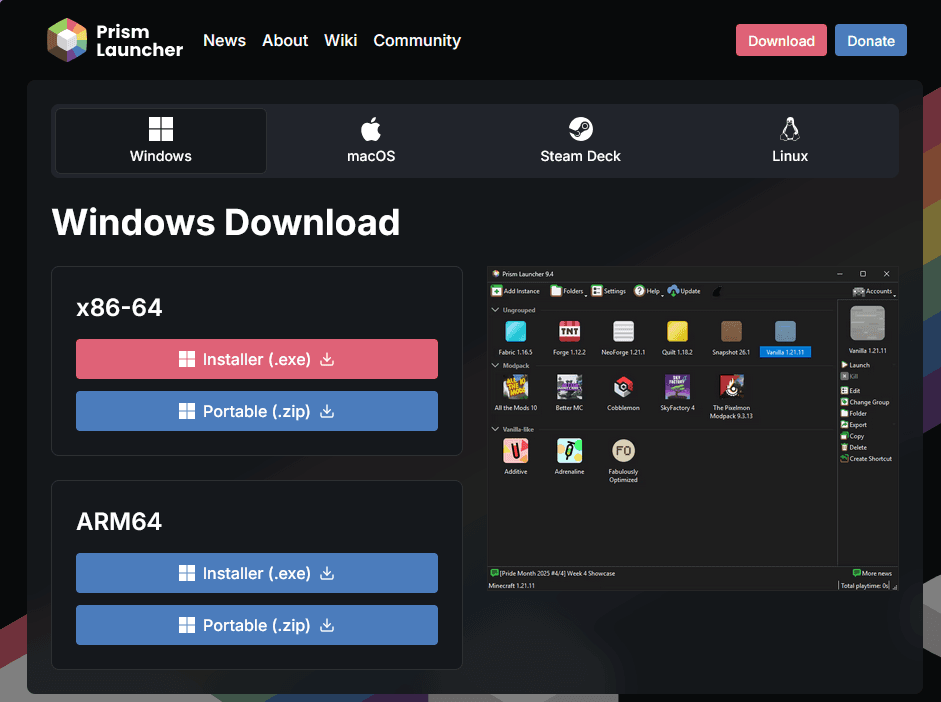
We recommend you to download the Portable version, as it is easier to remove later on.
Step 3 - Once you download the file, extract it!
It doesn't matter where you extract it to, could be on your desktop, could be hidden away in the middle of nowhere. As long as you know how to find it yourself to open it later on you should be fine.
We truly hope you know how to do this. We believe in you!
Step 4 - Open Prism Launcher!
In the extracted folder you should see prismlauncher.exe, double click that and the launcher will open.
Step 5 - Set up Prism Launcher
The first thing you should see is the Language selection screen, we recommend using the default American English language,
then click on Next!
Now you should see the appearance options, you don't have to change anything here as well, just click Next.
And now comes the hard part - adding a Microsoft account.
Click the Add Microsoft account button, a new window will show up.
Click Sign in with Microsoft. Then sign in with your microsoft account through the new browser window.
If you accidentally skipped the login screen, click on the top right part of the launcher and click Manage Accounts
Then click the Add Microsoft button and follow the instructions above.
Psst! - Don't have a Microsoft account? Check out Troubleshooting - Using Prism Launcher without a Microsoft account
Step 6 - Create a New Instance
Click on the Add Instance button in the top left of the main launcher menu.
For the current version of the guide, we recommend using 1.21.10.
You should also select Fabric as your mod loader.
Feel free to name your instance whatever you want, you can also set an icon by clicking the icon in the top left. Though that isn't necessary.
You should end up with a screen looking like this:
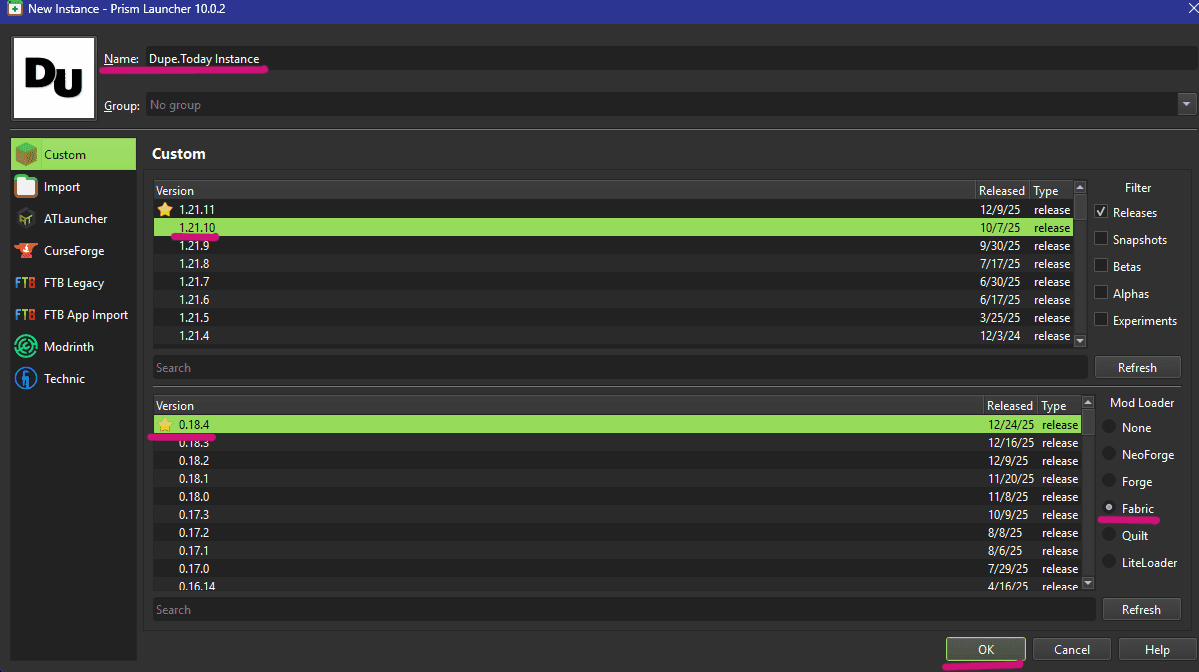
When you're done you can just click OK.
Step 7 - Download Mods
You should download a few mods to help you exploit, it's not going to be easy doing it purely on Vanilla, right?
All of the mods below can be obtained here!
Please keep in mind that the Source Code links for the mods are not the downloads, they are just links pointing to the code the plugins were made in, mostly meant to show that the mod has nothing malicious in it and usually lets more experienced people contribute to the mod easily. Though just because something is open source, that doesn't mean that the mod is completely safe. Looking at you, Chez.
Fabric API - Source Code
Fabric API is the library for essential hooks and interoperability mechanisms for Fabric mods.
Not to be confused with Fabric Loader - Fabric Loader is what loads the mods into Minecraft, while Fabric API is a library that most Fabric mods need to function. Without this mod, none of the mods below will work.
Meteor Client - Source Code
A Minecraft Fabric Utility Mod, has most features and is a requirement for our addon.
Warning! The main download includes a link with ads!, make sure you download the real version of the mod.
If the main download button isn't made for the same version as your instance, check out their archive! Click on the blue text with the version of your instance and a .jar file will be downloaded.
UI-Utils - Source Code
A mod for debugging plugins, by adding extra capabilities to your client in the latest versions of Minecraft.
In the UI-Utils CurseForge page, you should go to the Files tab to pick the mod version which matches your instance.
Again, please make sure that you are downloading the mod that supports your instance version!
Dupers United Addon - Source Code
A Meteor Addon with useful modules for dupe hunting. Requires Meteor Client.
The mod adds advanced macro commands, modules for server crashing, duping, packet delay and even more! The mod also has a texture pack made for it, though it's not required.
You should end up with 4 .jar files downloaded somewhere on your PC.
Step 8 - Add Mods to your Instance
You've finally managed to create the instance, but now you need to add the mods!
Click on your instance once in the main menu of the launcher, and on the right you should see an Edit button, click it!
A new window should pop up, in the new window, open the Mods tab.
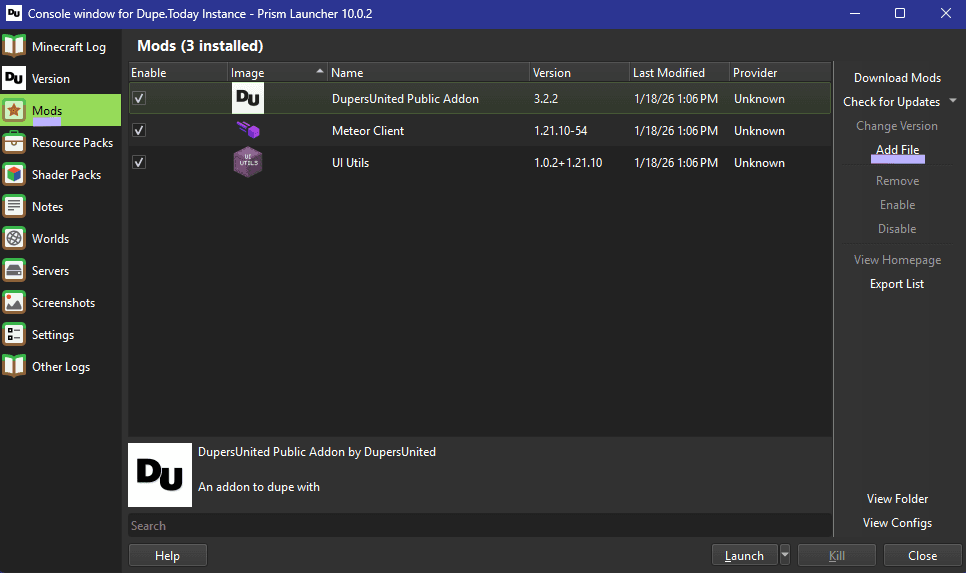
Now on the left you should see an Add File button, click it!
Now select all of the mods you downloaded in Step 7, you might need to add them one by one.
In the end you should end up with something that looks like this:
Step 9 - Close the window with the mods
Just click on the Close button in the bottom right. You should now be at the main launcher window.
Step 10 - LAUNCH!
Click on your instance and then click the Launch button on the right.
A new window with the game's console might open, you can close or minimize it.
If you've followed the guide correctly you should now be in Minecraft's main menu and you should see some new text at the top right of your main menu window. If you don't see anything there, you have done something wrong (Check out Troubleshooting).
Congratulations! You have successfully set up the beginning to your Minecraft dupe hunting journey.